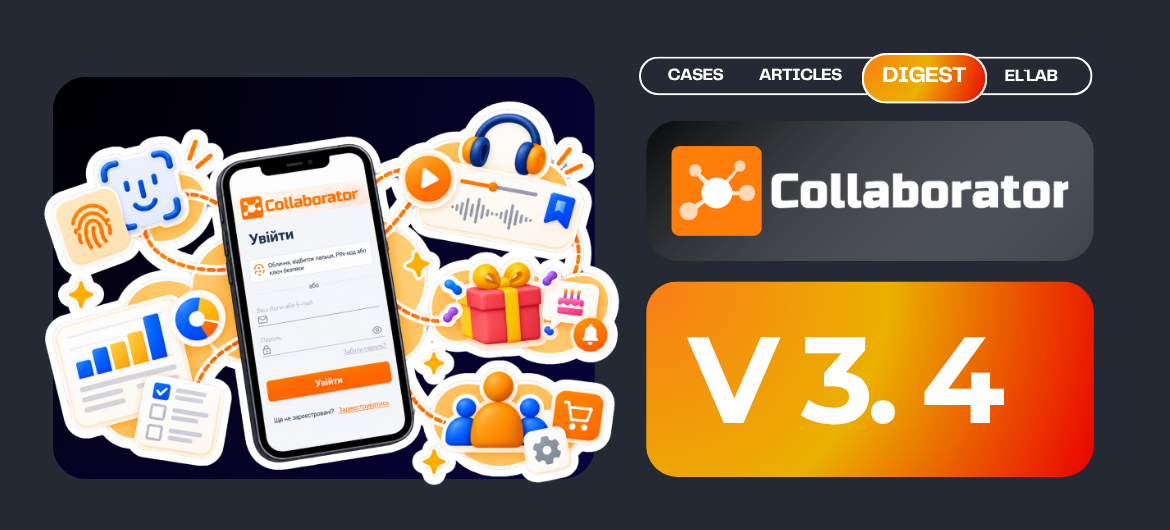
LMS Collaborator 3.4 – Biometric authentication, configuration of access groups for the gift shop, and the ability to select the outcome of program completion
Everything changes: the seasons, the weather, and even the design of LMS Collaborator. The only thing that remains constant is the reliability with which each of our new releases is delivered. This time, we’ve focused on features that will make the platform even more intuitive and user-friendly for both employees undergoing training and administrators.
Logging in takes just a few clicks. Picking up where you left off with an audio file is easy — it resumes exactly where you left off last time. Sending birthday wishes is a breeze — you can do it right from the home page.
Biometric authentication
We all know that, according to security guidelines, passwords for different services should be unique, should not contain personal information such as birthdates, your cat’s name, or phone numbers, and should include at least one uppercase letter, one number, and one special character.
We know this, but we rarely follow these rules, because keeping dozens of unique combinations in our heads is quite a challenge.
So, users of LMS Collaborator no longer face this problem, because we’ve added a biometric authentication option in the new version. Now you can log in to the system from your smartphone even more easily using a fingerprint scanner or Face ID, without having to enter a username and password.
The changes start right on the login page, where we’ve added additional login options. To enable the “Face, fingerprint, PIN, or security key” button, you’ll need to log in the standard way — that is, using your username and password.

After that, you’ll see a banner suggesting that you do this faster next time by using Face ID or your fingerprint instead of a password.
If you click the “Enable” button, the system will prompt you to link this device to your account. If you hide the banner, the platform will remember this action and will no longer display it to you until you clear your cache.
But if you change your mind later, you can configure this feature at a later time in the “Security” section.
This allows you to add up to five devices.
If, for example, you lose a device, you’ll be able to both revoke its access and completely disable biometric login.
Importantly, all of these actions will be logged in the security log, and the administrator can revoke any user’s access key if necessary.
Configuring access groups for the gift shop
Access groups from the previous release are being extended to more and more new features. This time, it’s the gift shop’s turn.
How does it work?
Let’s create three gifts and assign different access groups to them. Let the first one be for accountants, the second for administrators, and the third not tied to any specific group — in other words, accessible to everyone.
Now, when Halyna, the accountant, enters the gift shop, she sees the first and third gifts but does not see the second one, since she is not a member of that group. The same logic applies to Peter, the administrator, and the first gift. As a result, you can create permanent user groups to access various parts of the system — including the store, the database, or the catalog — without duplicating them.
The ability to choose the outcome of the program
You asked for it — we delivered! Starting with this version, the logic for calculating the program result will work the same way as it does in the courses.
Simply go to the “Determine the program result based on” section and choose one of the two options:
- % of successful completion
- Average score
In the first case, if an employee successfully completes 5 out of 10 elements, this means they have completed 50% of the program. In the second case, each element is assigned a specific percentage. These percentages are then added together and divided by the total number of elements to calculate the average.
Remembering the point at which the user paused playback of an audio file
When an employee needs to listen to not just a short three-minute recording but a full-length audiobook lasting eight to ten hours as part of their training, the last thing they want to do is try to remember exactly where they left off last time. Or search for where they put their notes with the timecodes.
To prevent such situations from arising in the first place, the system now automatically remembers where the employee stopped listening to the audio file last time, and when they return to the task, they can immediately continue from where they left off without wasting time fast-forwarding the slider.
A separate tab for tasks awaiting review
When we go to the “My tasks” page, we see that all tasks are organized by status: new, scheduled, failed, overdue, and completed. At your request, we’ve added another tab to this list — “Under review. Here, employees can find all the tasks they’ve already completed but are still awaiting evaluation by an administrator or supervisor.
Migrating resource category editing to the new design
As we mentioned earlier, the design update isn’t just about making the interface more visually appealing — it’s also about making it easier to use the platform’s features. In version 3.4 of LMS Collaborator, our team worked to make navigating the learning materials as intuitive and seamless as possible.
To add a new category or subcategory of resources, edit its name, rearrange them using drag-and-drop, or remove one from the list, all it takes is just a few clicks.
Test question response statistics tab
The updated and even more detailed statistics are back!
For your convenience, we’ve placed this section in a separate tab in the form of a table, where you can see how the company’s employees performed on the tests. In addition to the question text, the question type, and the number of responses, you can also track here what percentage of them were correct.
Why is it important?
Let’s say we see that out of 100 people, 73 gave the wrong answer to a certain question. This is definitely a red flag that signals to the administrator that the question requires further attention. Perhaps the question was worded incorrectly, or it is too difficult for this level and needs to be revised.
The same applies to a 100% completion rate, which may indicate that the task is too easy.
The ability to specify a “Department” in the position profile
It goes without saying that a novice developer and a programmer with five years of experience will have completely different skill sets. But in practice, it’s often the case that these skill sets don’t even align among novice developers from different departments within the same company.
In the new version, we have addressed this issue, and an employee will see a job profile only if they meet all three criteria: the job title, its level, and the department. If even one of these attributes does not match, the profile will be unavailable to them.
Reflecting the completion status in the final competency assessment report
When we open the assessment report, we see sections that indicate whether the assessment was completed in a particular role. Self-assessments are marked in gray, assessments from managers in light blue, and assessments from colleagues in blue.
We’ve added another section here for the final assessment, which is optional and is filled out by the employee’s immediate supervisor. We’ve highlighted it in orange. There are many forms for different users, but if this section is checked, we know that the final evaluation has already been entered without getting lost in the process.
Permission to skip questions during competency assessments
Our team implemented this feature in a similar way to checklists. So when creating an assessment, at the stage where we choose whether it will be based on criteria or competencies, we’ve added an option to allow questions to be skipped.
Enabling this option means that it will not be included in any statistics that might affect the employee’s overall score in the future. For example, we need to calculate the average score for a competency. If a user clicked “Skip” for a particular indicator, it will not be included in the final assessment.
Sending birthday greetings directly from the home page
The process of manually searching through your contacts for people celebrating their birthdays so you can send them greetings is finally a thing of the past! Now, on the home page, you’ll find not only the “Today’s Birthdays” widget, but also a “Send a greeting” button next to each one.
If you’ve communicated with this user before, you’ll be taken directly to the chat with them. If not, you’ll first be redirected to the page for sending a communication request.
Assigning tasks to subordinates from nested folders within the organizational structure
This feature is disabled by default. When we enable it, we expand the department head’s ability to interact directly with their subordinates in the various units, rather than just with their managers.
Read about the previous version of LMS Collaborator 3.3 here